
Max defers and failures per hour email error: How to fix it
Learn what the “max defers and failures per hour” error means, what 5/5 (17%) indicates, and how to find and fix failed messages before sending again.
In this article
If you receive a bounce with the message Domain has exceeded the max defers and failures per hour, the server has activated a temporary protection because the domain accumulated too many failed or deferred messages. This is not the total number of emails you can send per hour. To restore sending, review the full diagnostic, find where the messages are coming from and fix the cause before trying again.
The warning may look similar to this:
Domain example.com has exceeded the max defers and failures per hour (5/5 (17%)) allowed. Message discarded.
What does 5/5 (17%) mean?
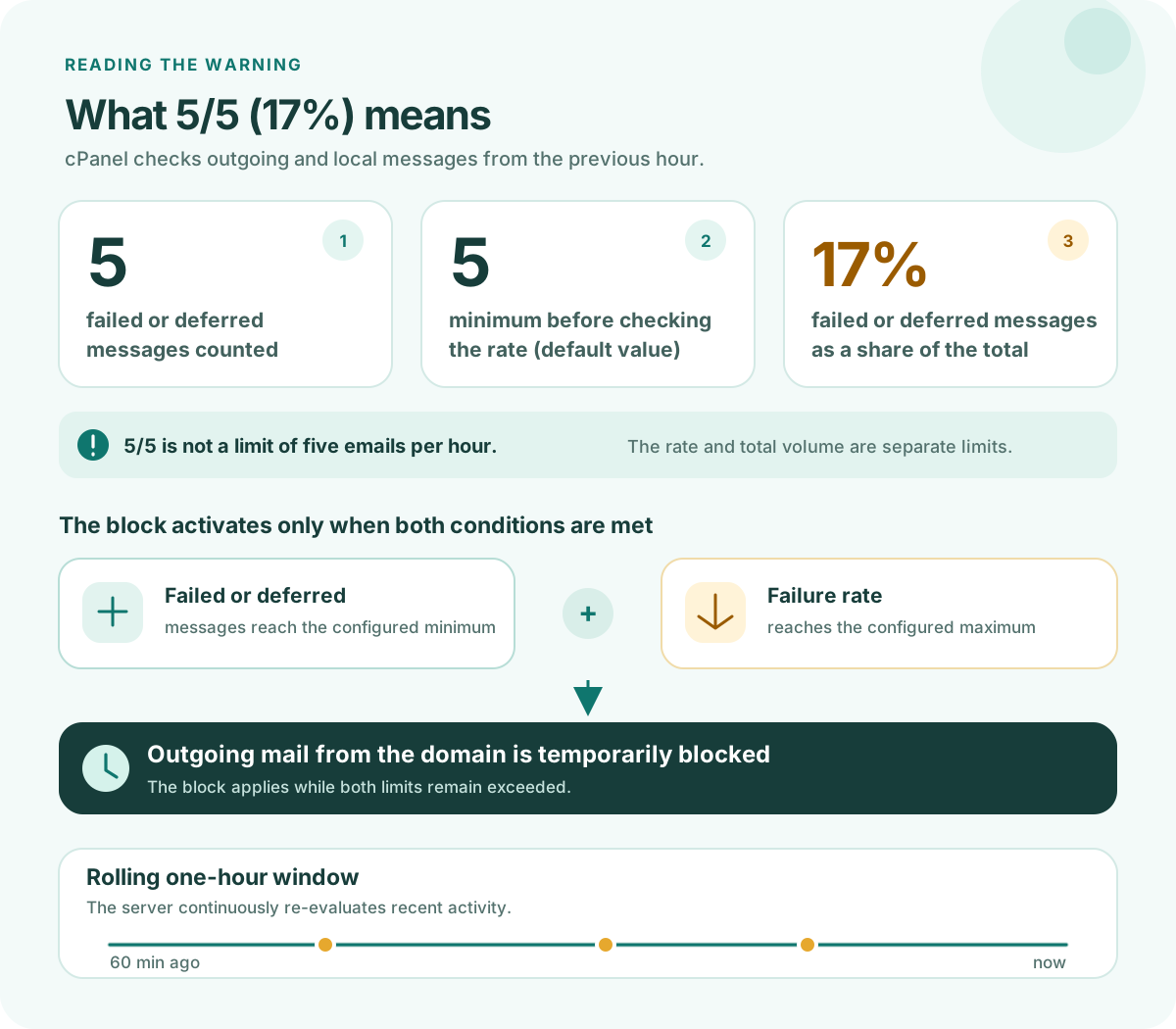
In cPanel, this protection checks outgoing and local messages from the previous hour. It checks two limits configured for the server or account: a minimum number of failed or deferred deliveries and a maximum percentage. The protection activates when both limits are reached.
In the example:
- The first
5is the number of failed or deferred messages counted. - The second
5is the minimum number at which the percentage is checked. cPanel documents5as the default, although the hosting provider can change it. 17%is the share of failed or deferred messages compared with the total number of messages considered during that period.
So 5/5 does not mean the domain can only send five emails per hour. That is a separate limit. This warning is about the proportion of deliveries with problems, even if only a small number of messages were sent.
The protection temporarily blocks outgoing mail from the domain while the limit conditions remain true. The bounce text may call the error for that particular message “permanent”; this does not mean the domain block is permanent. Because the server checks activity over the previous hour, it is not possible to promise that sending will resume exactly one hour after the warning. It depends on when the failures and deferrals occurred.
Why this warning may appear
The warning confirms that a failed or deferred delivery limit was reached, but it does not identify the cause by itself. Possible causes include:
- A mistyped or nonexistent destination address, or one that rejects the message.
- A temporary issue with the receiving server that defers delivery.
- A response from the receiving server related to authentication or anti-spam policies.
- A form, store or application that sends notifications to incorrect addresses or keeps retrying.
- A forwarding rule that sends messages to an external account that rejects them.
- An account or application sending messages without your authorization.
The SMTP code and full response help distinguish these causes. In general, an SMTP 4xx code indicates a temporary rejection; a 5xx code indicates a permanent rejection for that attempt. You need the text accompanying the code to know what to check. The SMTP standard explains these response classes.
How to find and fix the problem
1. Read the full bounce message
Do not focus only on the phrase max defers and failures per hour. If the message includes a details.txt attachment, open it and note the diagnostic, SMTP code and time. The warning by itself does not confirm why the recipient rejected the message.
Avoid resending the same message several times without changing anything. If the recipient keeps rejecting it, more attempts may keep the limit active.
2. Check Track Delivery in cPanel
- Sign in to cPanel and open Email → Track Delivery.
- To look for a specific message, enter the recipient’s address and click Run Report. You can also filter the results to show blocked or failed messages.
- Open the information icon and review the status, time, sender, recipient and Result text. Check whether failures involve one address or several different messages.
The tool can show successful and failed deliveries, but your hosting provider can disable it. If it is missing from cPanel or does not show the messages you need, ask support to review the delivery log. cPanel documentation explains Track Delivery and its filters.
3. Apply the fix that matches the diagnostic
- Nonexistent or mistyped address: confirm the address with the recipient, then correct or remove the contact before sending again.
- Temporary rejection or deferral: wait until the receiving server accepts messages and check Track Delivery. Avoid repeated manual retries.
- SPF or DKIM error: check Email → Email Deliverability in cPanel. If the domain uses another provider for DNS, confirm the records there before changing them. Do not add a second SPF record or change DNS based only on the limit warning. cPanel explains what Email Deliverability checks.
- Message sent by a website or application: identify the form, store, plugin or scheduled task generating the messages. Pause its retries while you fix the cause.
- Forwarding to an external account: check whether the forwarded messages are being rejected. miHosting explains its limits and alternatives for external forwarders.
- Messages you do not recognize: change the affected account’s password, update it on your devices and contact support to find the source. Sending from an email program may stop until you update the password there.
Do not increase or disable the limit as a first step. It protects outgoing mail; changing its settings does not fix invalid addresses, application errors or unauthorized access that caused the failures.
4. Confirm that sending has recovered
After fixing the cause, wait for the failures to leave the server’s evaluation window, then send one test message to an address you know is valid. Check its result in Track Delivery or confirm with the recipient that it arrived. If it fails again, save the new diagnostic instead of repeating the send.
What to send to support
If the limit returns, you cannot find the source or you do not have access to the delivery report, give support:
- The affected domain, approximate time and your time zone, along with the full bounce text and
details.txt, if attached. - The sender account, recipient address and sending source: webmail, an email program or a web application.
- The Track Delivery result or ID, if available, and the fixes you have already tried.
Do not send passwords or other secrets. If you share a screenshot outside a private support channel, hide personal email addresses.
Frequently asked questions
Does the limit clear on its own?
The protection is temporary. It remains active while activity in the evaluated hour exceeds the thresholds and may be triggered again if you do not fix the cause.
Does the warning mean the recipient’s address does not exist?
Not necessarily. The warning confirms that the domain reached the limit. Review the full bounce or Track Delivery to find the cause of each delivery issue.
If you cannot find the cause or the block appears again, contact the miHosting support team and share the error details so they can review the delivery.