
Chrome Shows Dangerous Site on My Domain
What Chrome's red phishing or dangerous site warning means and which steps to take to clean the website and request a review.
In this article
Introduction
If Chrome shows a red screen with the message “Dangerous site” when someone visits your domain, the browser is blocking access to protect visitors.
This warning is usually not related to an expired domain or a missing SSL certificate. It normally appears because Google Safe Browsing detected signs of phishing, malware, unwanted software, suspicious redirects or content added to the website without permission.
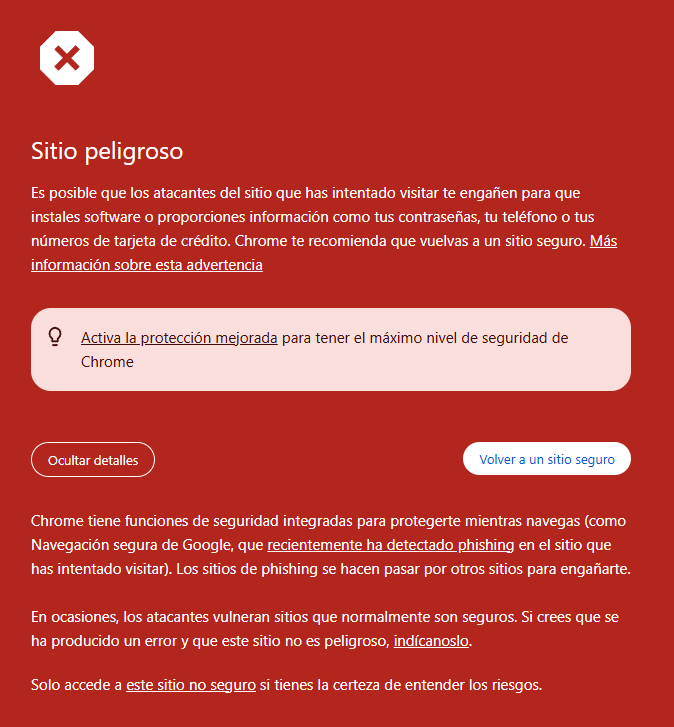
What the Warning Means
Chrome uses Google Safe Browsing to warn users before opening sites that could steal data, install dangerous software or trick people into sharing sensitive information.
Chrome’s full warning may show text like this:
Dangerous site
Attackers on the site you tried to visit might trick you into installing software or revealing information such as your passwords, phone number or credit card numbers. Chrome recommends that you go back to safety. Learn more about this warning.
Turn on enhanced protection to get Chrome’s highest level of security.
Chrome has built-in safety features to protect you while you browse, such as Google Safe Browsing, which recently detected phishing on the site you tried to visit. Phishing sites pretend to be other sites to trick you.
Sometimes attackers compromise sites that are normally safe. If you think this is a mistake and that this site is not dangerous, report it.
Only visit this unsafe site if you are sure you understand the risks.
When this message appears, the site may be in one of these situations:
- The website was compromised and contains malicious files.
- Fake pages were added for phishing.
- There are redirects to dangerous sites.
- A plugin, theme or CMS became outdated and was hacked.
- Unknown scripts, iframes or files were uploaded.
- Google detected deceptive behavior even if the homepage looks normal.
There can also be a false positive, but it is best to treat the warning as a security incident until you confirm that the site is clean.
What Visitors Should Do
If you are a visitor, do not ignore the warning or click through to the unsafe site unless you understand the risk and have a technical reason to do so.
Do not enter usernames, passwords, personal details, phone numbers, card details or private information on a website marked as dangerous. The safest option is to go back and notify the site owner.
Steps to Fix the Problem
1. Do not keep using the website as if nothing happened
The first step is to prevent more users from being exposed. If the site is compromised, it is usually best to put it temporarily into maintenance mode, block suspicious access or work on a copy until the installation is clean.
2. Check Google Search Console
If the domain is verified in Google Search Console, open the panel and review:
- The Security issues report.
- Manual actions.
- Messages sent by Google about malware, phishing or hacked site warnings.
- The specific URLs that Google marked as dangerous.
If the domain is not verified, you should verify it as soon as possible so you can receive details and request a review once the website is clean.
3. Check the status in Google Safe Browsing
You can check Google’s public Safe Browsing diagnostic to see whether the domain is still marked as dangerous.
This check helps confirm whether the warning comes from Google Safe Browsing and not from another antivirus, browser extension or local block.
4. Scan files and the database
You need to review the whole website, not only the homepage. In WordPress or other CMS websites, the most common places to check are:
- Recently modified files.
- Outdated plugins, themes or extensions.
- Unknown administrator users.
- PHP files inside image or upload folders.
- Obfuscated JavaScript code.
- Redirects in
.htaccess, server configuration or the database. - New pages with phishing, spam, medicine, loan, cryptocurrency or brand content that does not belong to the site.
If you do not have experience cleaning malware, ask for technical help before deleting random files. Removing only what is visible can leave an active backdoor behind.
5. Change passwords and close access points
After detecting an incident, change the passwords for:
- Hosting panel.
- FTP, SFTP or SSH.
- CMS administrators.
- Database.
- Email accounts associated with the domain.
- Google Search Console accounts or external tools.
You should also review unknown users, API keys, scheduled tasks and access that should no longer exist.
6. Update the website
Once the dangerous content has been removed, update the CMS, plugins, themes and any vulnerable components. If the infection entered through an old version, cleaning without updating can make the problem return within hours.
In some cases, it is better to restore a backup from before the attack and then update everything before publishing the site again.
7. Review DNS and redirects
Confirm that the domain points to the correct server and that there are no unexpected external redirects.
Review especially:
- DNS records modified without authorization.
- Redirects from the hosting panel.
- Rules in
.htaccess. - CMS settings.
- External scripts loaded from unknown domains.
8. Request a Review from Google
When the site is clean, request a review from Google Search Console. In the request, briefly and clearly explain what was done:
- Which malicious files or pages were removed.
- Which vulnerability was fixed.
- Which plugins, themes or CMS components were updated.
- Which passwords and access credentials were replaced.
- Which measures were taken to prevent the issue from happening again.
If the issue was phishing and you do not have access to Search Console, Google also provides review forms for pages marked as phishing.
9. Wait for the Warning to Update
Even if the site is already clean, the warning can take time to disappear. Google needs to review the website again, and the changes can take a few days to appear in Chrome and security reports.
Do not request repeated reviews if the site has not yet been cleaned. Sending a review too early can delay the resolution.
If You Need Help Cleaning the Website
If, after understanding everything that needs to be reviewed, you prefer miHosting to help you, visit our web maintenance section. From there we can review the case, help clean the website, fix the cause of the warning and prepare the site to request the corresponding review.
How to Prevent It from Happening Again
To reduce the risk of new alerts:
- Keep the CMS, plugins and themes updated.
- Remove plugins or templates you do not use.
- Use strong passwords and two-factor authentication whenever possible.
- Make regular backups.
- Limit administrator access.
- Install malware protection or a web application firewall if the project requires it.
- Review Search Console periodically.
- Avoid installing plugins, themes or scripts from suspicious sources.
Conclusion
Chrome’s “Dangerous site” warning is serious. It means Google detected a possible threat for visitors, usually phishing, malware, malicious redirects or content added by an attacker.
The solution is not to ask users to ignore the warning. You need to review the website, clean the compromised content, fix the cause, update the site, change credentials and request a review from Google. Only after Google confirms that the site is clean will the warning stop appearing for visitors.